
How to Properly Use, and Self-Host, Variable Web Fonts
Variable web fonts essentially give us the ability to have multiple font weights in one file. They can do all sorts of other things, too, but for the purposes of this article, we’ll focus on how they can affect font weight and save some download size on our pages.
Let’s look at Google Fonts, specifically Rubik.
Familiarity with uploading files and editing CSS is presumed if you’re reading this article.
How to Self-Host and Use Rubik as a Variable Web Font
Firstly, why self-host?
tl;dr: It makes for faster website, and gives us more font weights at the same time.
Self-hosting means we’ll store and load the font from our own server. Sure, Google Fonts gives you some code you can use to just pull the fonts from their websites, but doing this is slower than hosting the fonts yourself. Here’s a great article that goes into great depth on the subject of why self-hosting your fonts is better for performance. Or just believe me, it’s faster.
If we just wanted one Rubik Regular and Rubik Bold, those individual fonts would weigh in at around 123kb as three woff2 files.
Using the regular variable version of the Rubik font, though, it’s only 111kb. And now we have several font weights, instead of just two.
How to Self-Host a Google Web Font
1 – Go to the font’s page on Google, Rubik is here.
2 – Click the Get Font button near the top right of the page.

3 – Click Download All

4 – That’ll give you a ZIP file. Open it, and note the two .ttf files.
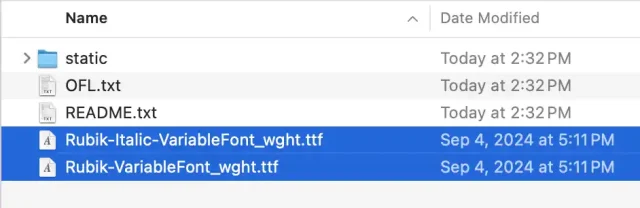
It would be nice if Google just provided these as .woff2 files, but for whatever reason their typical infinite wisdom and foresight have been missing from Google Fonts since its inception. Therefore, we have to create our own…
5 – Convert the .ttf files to .woff2.
Most online font converters like Squirrel Font and Transfonter can’t do this. I use this Yabe Webfont Converter page, and it hasn’t failed me yet!
Just drag and drop both .ttf files (or however many you have – and you don’t have to use the Italic version if you don’t want to, of course.)

That site will do its thing, and you’ll soon be prompted to download a variable .woff2 version of each file you uploaded.
6 – Upload to your web server!
I won’t get into how exactly to do this, but the usual methods are:
- Via FTP – ask your hosting company if you don’t know how to get this.
- Via cPanel’s “File Manager” feature.
Again, ask your host if you need help, or Google it.
How to Use a Self-Hosted Font on Your Website
Now that we’ve got the file on our server, let’s put it into action.
1 – “Load” the font up in your CSS:
@font-face {

	font-family: "Rubik";

	src: url("/fonts/Rubik-VariableFont_wght.woff2") format("woff2");

	font-display: swap;

}

@font-face {

	font-family: "Rubik-Italic";

	src: url("/fonts/Rubik-Italic-VariableFont_wght.woff2") format("woff2");

	font-display: swap;

}
Note that you’ll need to replace the highlighted parts below with the actual path the font files we uploaded earlier.
src: url("/fonts/Rubik-VariableFont_wght.woff2") format("woff2");
Now we can use them like any other web font, for example:
	h1, p {font-family: 'Rubik';}

	em {font-family: 'Rubik-Italic';}
But we can expand on that a bit:
	h1, p {font-family: 'Rubik';}

	h1, strong {

		font-weight: 700;

	}

	em, i {

		font-style: normal;

		font-family: 'Rubik-Italic';

	}
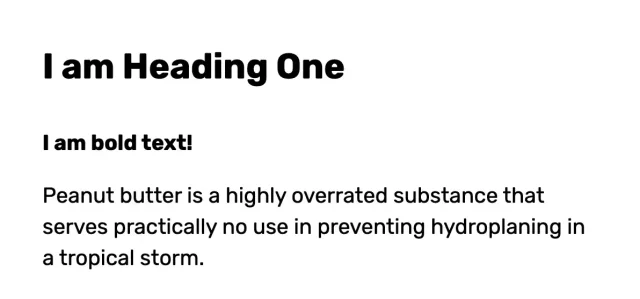
Now, our h1 and strong tags will have a heavier weight, and our em, i tags will not be auto-italicized by the browser, but will use the Rubik-Italic font, specifically. Here’s a screenshot of how that all might look on the front end:
And there you have it!